Solutions · Analytics & Reporting
Turn Visitor and Attendance Activity Into Committee-Ready Insight
GuardWatch turns the gate scans and guard attendance punches you already collect into filtered visitor history and meeting-ready summaries — so committee questions get answered from real records, not memory.
- Visitor history filters
- Guard attendance insight
- Meeting-ready summaries
- Same records as daily access
Related: Admin dashboard · Guard attendance · Visitor management
The problem
Committee Questions Should Not Mean Rebuilding Spreadsheets Overnight
When visitor books and attendance sheets live apart, every board meeting becomes a scavenger hunt.
-
Manual reconciliation
Staff retype gate notes into Excel the night before a meeting.
-
Incomplete answers
A missing register page means “we don’t know” in front of the board.
-
Separate attendance tools
Visitor logs and who was on duty never line up in one filterable view.
What changes
One Filtered History Instead of Scattered Records
A committee question — "who visited unit 4B last week" or "was the night guard on duty Tuesday" — shouldn't require opening a notebook, a spreadsheet, and a group chat. GuardWatch keeps visitor and attendance activity in one place you can filter on demand.
- Visitor history filters — narrow gate activity by date range, unit, host, or guest instead of scrolling every scan on the property.
- Guard attendance insight — see Time IN / Time OUT sessions and duration for the same period, so staffing questions have an answer too.
- Meeting-ready summaries — pull a filtered view together for a board or committee meeting without manually retyping entries.
- Same records as daily access — reporting reads from the same gate scans and attendance punches used to run the gate, not a second copy.
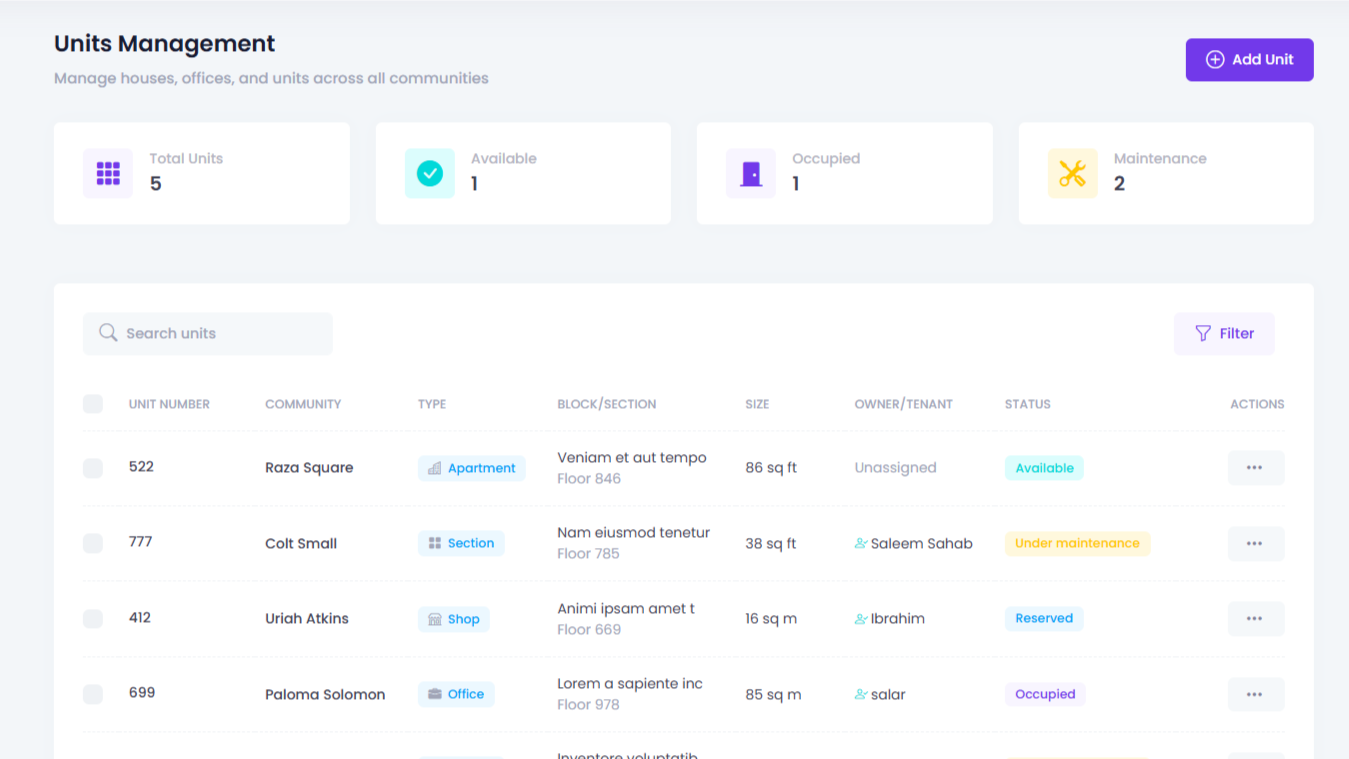
Before & after
From Digging Through Logs to One Filtered View
Same underlying activity, a very different amount of effort to make sense of it.
| Reporting task | Before GuardWatch | After GuardWatch |
|---|---|---|
| Visitor history for a date range | Scroll a paper register or chat thread guest by guest | Filter visitor history by date, unit, or guest in the dashboard |
| Guard attendance for a shift | Ask the guard directly or check a handwritten register | Guard attendance insight from stored Time IN / Time OUT sessions |
| Preparing for a board or committee meeting | Retype entries into a summary the night before | Pull a meeting-ready summary straight from stored records |
| Matching activity to daily gate decisions | A separate notebook kept alongside the actual gate log | Same records used for daily access — nothing to reconcile |
| Handing reporting off to a new manager | Knowledge lives in one person's notebook or memory | History stays in the account, filterable by anyone with access |
How it works
How a Committee-Ready Report Gets Produced
No separate reporting tool to maintain — just the activity you already have, filtered.
-
1
Activity is recorded
Every visitor scan and guard Time IN / Time OUT is stored automatically as it happens — no extra data entry step.
-
2
Manager opens history
A community admin or security company admin opens visitor and attendance history for the period being asked about.
-
3
Records are filtered
History is filtered by date range, unit, or guard so only the relevant activity is on screen.
-
4
Summary is shared
The filtered view is shared with the board or committee — the same records used for daily access, not a rebuilt version.
Product preview
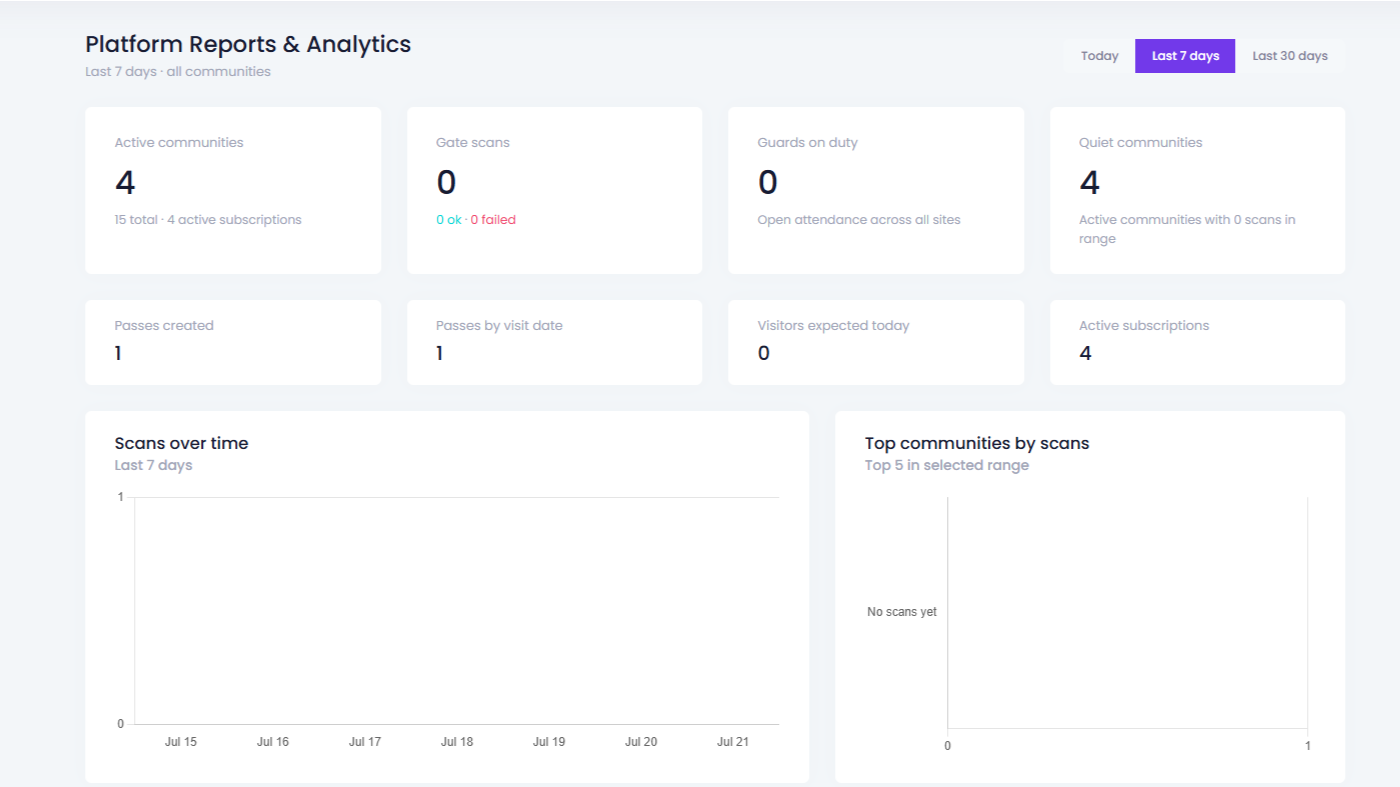
See the Reporting Screen Your Managers Will Use
Filtered visitor and attendance history, ready to review or share with the committee.
Product walkthrough
See filtered visitor and attendance history live
We walk a real committee-style question against your demo data — not a static PDF mock.
Common questions
Analytics & Reporting FAQs
Straight answers for community managers, security company admins, and boards evaluating GuardWatch reporting.
What does analytics & reporting actually show?
It turns the visitor scans and guard attendance punches already stored in your GuardWatch account into filterable history — by date, unit, guest, or guard — so you can answer a specific question instead of reading a raw activity log line by line.
Can I filter visitor history by date, unit, or guest?
Yes. Visitor history can be filtered by date range, unit, or guest, so you can pull exactly the activity a committee, board, or audit is asking about instead of scrolling every scan on the property.
Does this cover guard attendance too, or only visitor logs?
Both. Guard attendance insight covers Time IN / Time OUT sessions and duration for the same date range, so a report can show who was on duty alongside who entered — without switching to a separate tool.
Are these the same records used for daily access, or a separate report system?
The same records. Reports are built from the same gate scans and attendance punches used for daily access decisions — there is no second log to keep in sync or reconcile against the first.
Can a meeting-ready summary be shared with the HOA board or management committee?
Yes. A filtered view of visitor and attendance history for a specific period can be shared with the board or committee, so meeting prep does not mean retyping entries from a register the night before.
Who can access reporting — residents, guards, or only admins?
Access follows the same role boundaries as the rest of GuardWatch. Community admins, security company admins, and super admins see reporting scoped to their access level; guards and residents use their own apps for day-to-day entry and attendance, not report filtering.